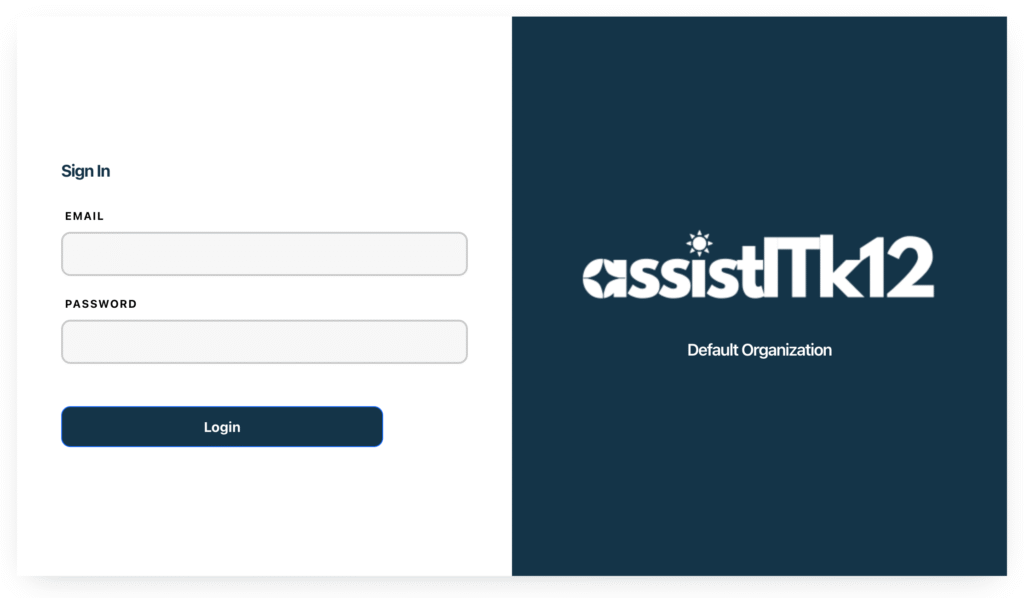
District administrators sign in through the same login page as every other AssistITk12 user — no separate admin portal to remember.
Logging in
Go to your district’s AssistITk12 login page and enter your email address and password — the same credentials you set up during deployment, or the ones you were given when you were added to your district’s account.
The district admin (owner) role
If you were the one who deployed AssistITk12 for your district, you’re the owner of that installation — the first district administrator. As the owner, you can:
- Add additional district administrators
- Manage school-level admin accounts
- Manage the flow of staff data into AssistITk12
- Edit or update AssistITk12 roles
- Create new classrooms and sites
The dashboard
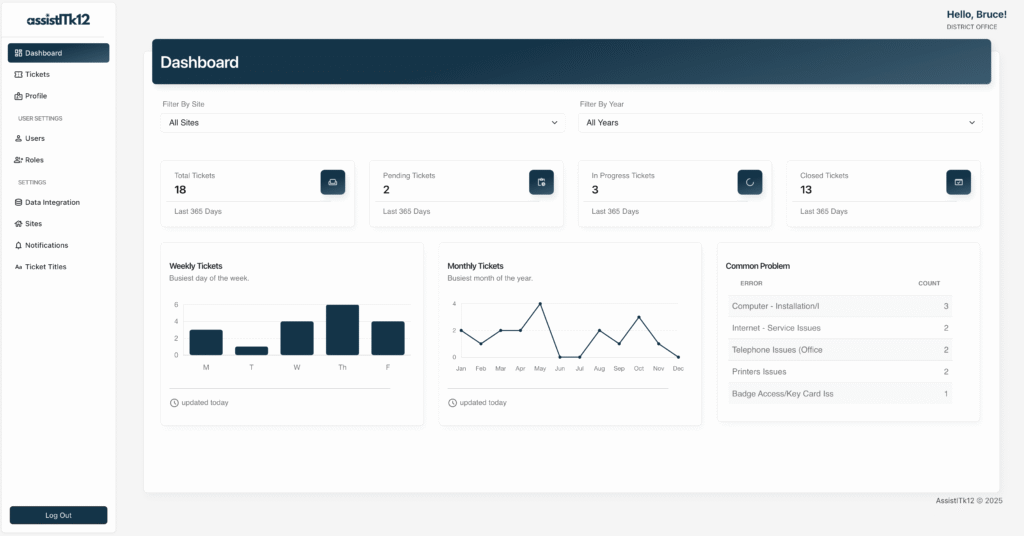
Once you’re logged in, the dashboard is your home base for managing district data, users, and account settings — see the Dashboard & Tickets Walkthrough for a full tour.
Next steps
- Take a tour of the Dashboard & Tickets Walkthrough.
- Ready for staff to start submitting requests? Share How to Create a New Ticket.